 FlexiFees
How to Add a Fee to a Shopify Order: 7 Ways Compared
· first published
Shopify has no built-in setting that adds a required fee to an online order. Three native features come close: a handling fee on carrier-calculated shipping rates, optional tips at checkout, and custom fees in Shopify POS, which work only for in-person sales. For a fee that every matching online order must pay, such as a small order surcharge or a state delivery fee, the realistic options are raising prices, a “fee product”, a custom app built on Shopify Functions, or a fee app.
Which way should you use?
| Method | Works for online orders | Added automatically | Shown as its own line | Good for |
|---|---|---|---|---|
| Handling fee on carrier-calculated rates | Yes | Yes | No, it is part of the shipping price | Packaging costs you are happy to hide in shipping |
| Tips at checkout | Yes | No, the customer chooses | Yes, as a tip | Voluntary extras, charity add-ons |
| POS custom fees | No, in-person sales only | No, staff add it | Yes | Delivery or customization fees at the counter |
| Raising product prices | Yes | Yes | No | Costs that never need to be itemized |
| A “fee product” the customer adds | Yes | No | Yes | Opt-in services such as gift wrap |
| A custom app built on Shopify Functions | Yes | Yes | Depends on the build | Shopify Plus stores with a developer and unusual rules |
| A fee app (for example FlexiFees) | Yes | Yes | Yes | Required fees with conditions |
The two questions that decide most cases: does the customer have to pay it, and does it have to be shown separately? Government fees usually answer yes to both.
Does Shopify have a built-in way to add a fee?
Not for online orders. The closest built-in features each solve a narrower problem, covered below. Shopify Scripts are not an option either: Shopify stopped running all Scripts on June 30, 2026, after editing ended on April 15, 2026.
Can I add a handling fee to shipping rates?
Yes, if you use carrier-calculated rates. Shopify lets you mark those rates up by a flat amount, a percentage, or both:
- In your Shopify admin, go to Settings > Shipping and delivery.
- Click the shipping profile you want to change.
- Next to the carrier-calculated rate, open the menu and click Edit shipping option.
- In the Handling fee section, enter a percentage, a flat amount, or both, then click Done and Save.
The percentage is applied before the flat amount. The catch is that the customer never sees a handling fee: they see a higher shipping price. That is fine for packaging costs. It is not fine for a fee that has to be shown on its own line, and it does nothing for pickup orders or for flat shipping rates.
Can I use tips as a fee?
Only for charges the customer may skip. Shopify’s online tipping lets customers add an optional tip on the payment page, and you can rename the Tip label under Online Store > Themes > Edit default theme content > Checkout & system, for example to “Support our staff”. Because the customer decides whether to pay it, a tip cannot collect a fee you are required to charge.
What are Shopify POS custom fees?
Custom fees are a Shopify POS feature for in-person sales. Staff add a saved fee, such as a local delivery charge, from a tile on the POS screen. Shopify’s own limits: the fee must be a fixed amount, not a percentage, and only one custom fee can be added per cart. Nothing carries over to your online store.
Why not just raise prices or add a “fee product”?
Raising prices is the simplest route and the right one when a cost never needs to be itemized. It fails for fees that must appear separately. A Colorado retailer that charges the Retail Delivery Fee, for example, must show it separately on the receipt (see our Colorado delivery fee guide). Folding a fee into the price also changes every price comparison a customer makes.
A “fee product” is a product called something like “Handling fee” that customers add to their cart. It shows up as a proper line, but nothing makes the customer add it, and nothing stops them removing it. It also cannot react to what is in the cart: no “only under 50”, no “only for orders to California”. It works for opt-in services, and it is unreliable for anything mandatory.
Can a developer build it with Shopify Functions?
Yes. Shopify Functions let a developer write a custom app that changes the cart, and Shopify’s own Cart Transform documentation shows how cart lines can be expanded or merged. Three limits are worth knowing before you commission one. Only stores on a Shopify Plus plan can use custom apps that contain Shopify Functions; public apps from the Shopify App Store work on every plan. Apps that override a line’s price or title also need Shopify Plus (or a development store). And each app can install one cart transform function per store, which you then maintain yourself as Shopify’s APIs change. For a single unusual rule on a Plus store, a custom build can make sense. For ordinary fees it is a lot of engineering.
How do I add a fee automatically with an app?
A fee app does the job of the fee product, but adds and removes the line itself when the cart matches your rules. None of the Shopify Plus limits above apply: FlexiFees works on every Shopify plan and needs no developer. A small order surcharge takes a few minutes:
- Install FlexiFees. In the app’s setup guide, complete Step 1: Activate app embed, which switches the app on in your theme.
- Click New Fee. Under Start from a compliance template (optional), choose Small order surcharge and click Use this template, or start from a blank fee.
- In Title, enter the name customers will see on the fee line, for example “Small order surcharge”.
- Choose Cart fee for one fee per order, or Per product fee to charge each matching item.
- Under Pricing & details, set the fee type (Fixed, Percentage, Percentage by cost, Per weight, Per unit of metafield, Percentage of metafield or Formula) and enter the amount in Fee value to apply. Leave Taxable on if the fee should be taxed.
- Under Conditions, add the rule. The template already has Cart subtotal is less than or equal to 50, so the fee applies only to small carts. Use Add New Condition for more, such as a customer country.
- Turn on Fee status and click Save fee. Templates are created unpublished on purpose, so nothing is charged until you do this.
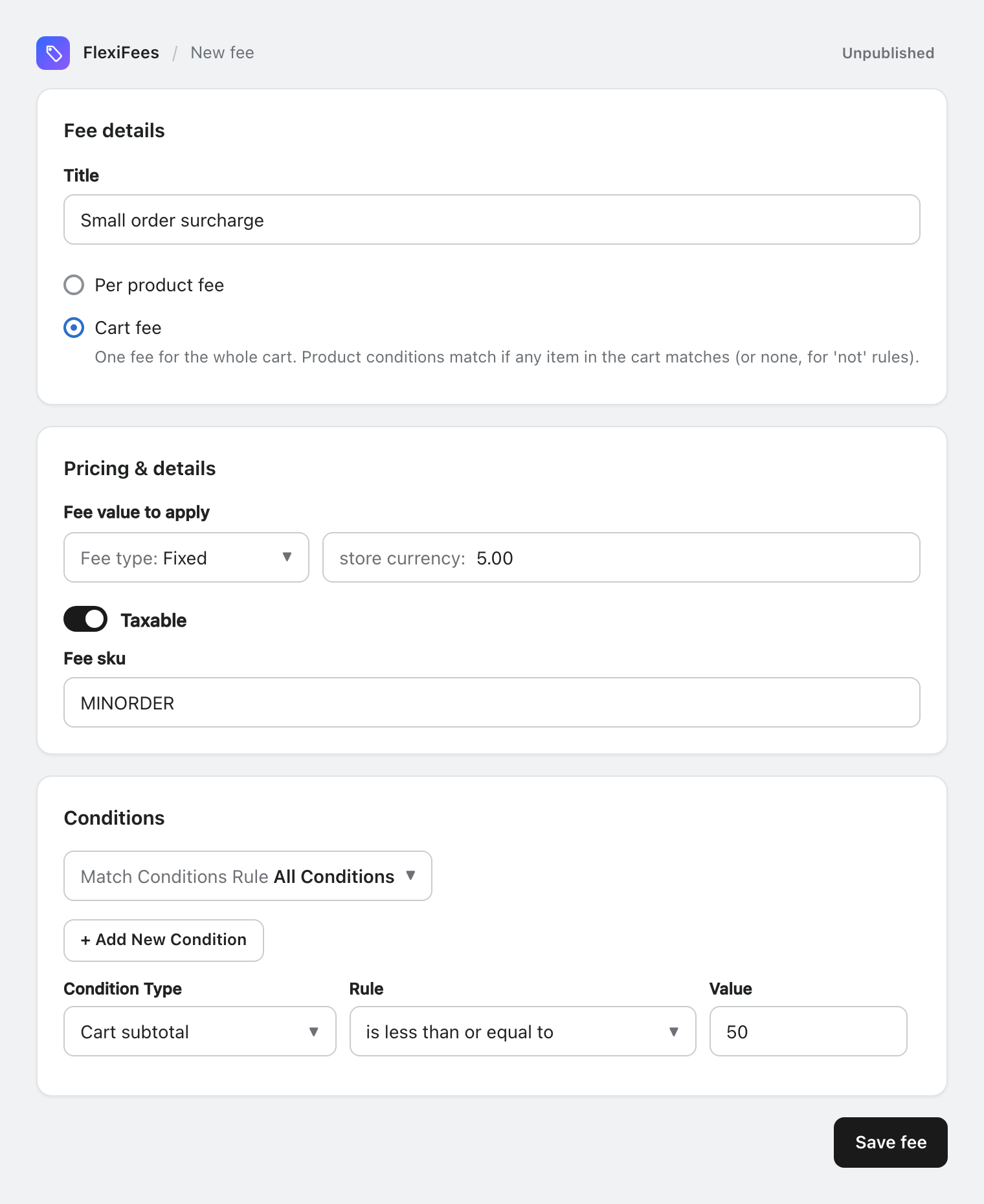
From then on, a cart at or under the threshold shows the surcharge as a separate line with your title, and the line disappears when the customer adds enough to pass it. The getting started guide covers every field, and how fees appear at checkout covers taxes, discounts and refunds.
One gap applies to any fee that is added in the cart: the Buy it now button on product pages skips the cart, so the fee is never added to those orders. FlexiFees has an optional Buy Now guard that blocks such a checkout and sends the customer back to the cart. It cannot add the fee at checkout itself, because Shopify’s checkout rules can only block.
Sources
- Shopify Help Center, Setting up shipping rates (mark up or discount carrier-calculated rates)
- Shopify Help Center, Setting up tipping options for online orders
- Shopify Help Center, Custom fees in Shopify POS
- Shopify developer docs, Cart Transform Function API and Function APIs overview
- Shopify developer changelog, Shopify Scripts will be deprecated on June 30, 2026